1️⃣
ChooseChoose a work area or search
14 work areas down the left side, or type directly into Find a task, for example "DNS", "GPO", or "BitLocker".
A helpdesk desktop app: diagnose, understand, resolve
A free Windows 11 diagnostic and repair application built for Tier 1 to Tier 3 support. It puts 70 common checks and fixes, network, hardware, Group Policy, repair, printers, Wi-Fi, VPN, and software installation, behind one searchable window, with the exact PowerShell or CMD command shown and explained before you run anything. No hidden scripts, no telemetry, no network calls except the software tasks you explicitly ask it to run.
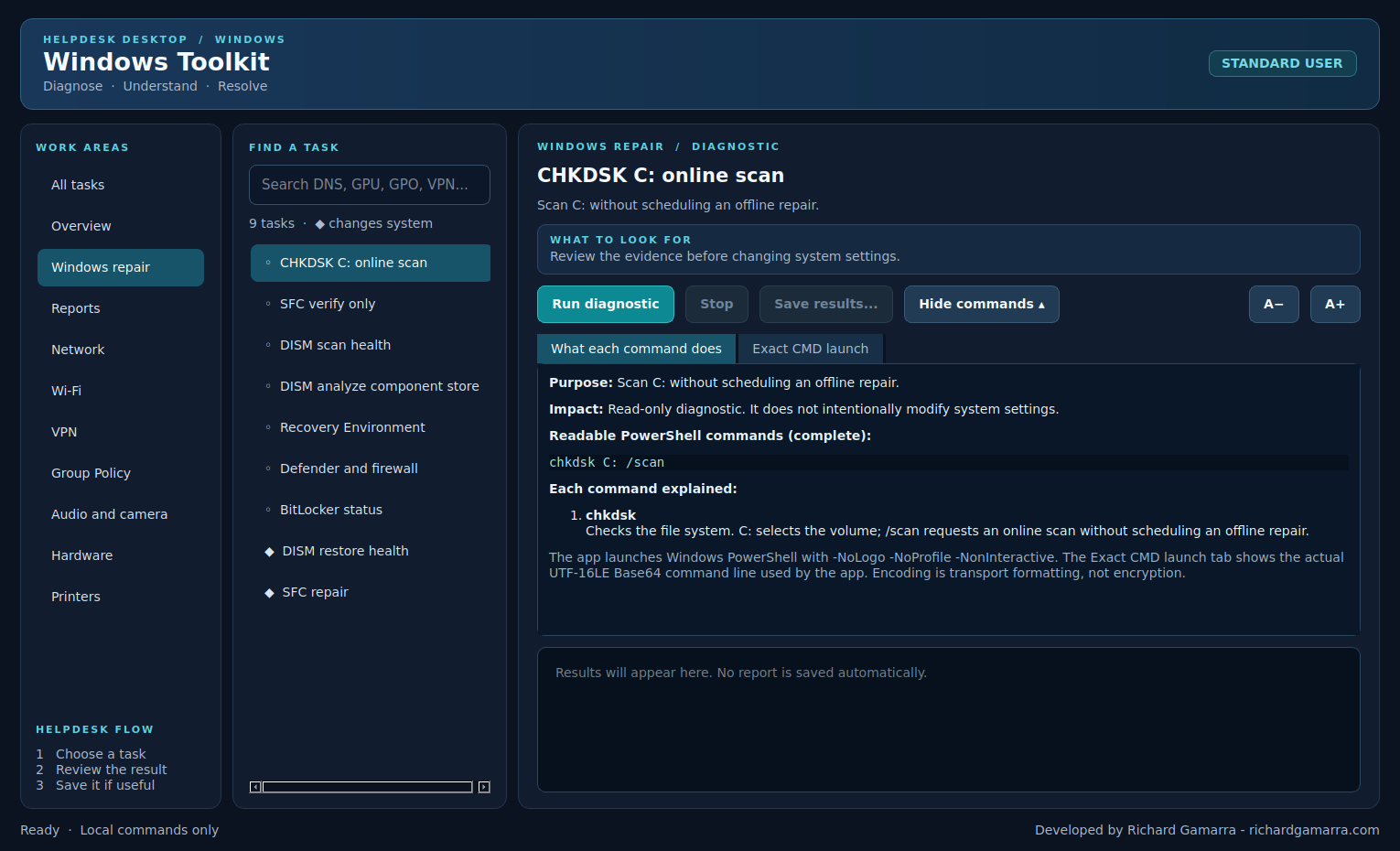
Windows 11 x64 installer. Per-user install, no administrator rights required to install it. Individual tasks inside the app request elevation only when they actually need it.
Download for Windows 11 ↓RG Windows Toolkit is a visual helpdesk application built with Qt for Python (PySide6). It runs predefined local PowerShell and CMD commands only: there are no network calls, automatic downloads, credential collection, or telemetry inside the application itself, the only exception is the Software tab, which talks to WinGet when you explicitly ask it to search, preview, or install something.
Work areas on the left, tasks for the selected area in the middle, the result and full command explanation on the right.
14 work areas down the left side, or type directly into Find a task, for example "DNS", "GPO", or "BitLocker".
Output appears in the right panel. Expand Commands explained to read the full readable script, what each command does, and the exact CMD launch line on its own tab.
Save results... writes a UTF-8 text file anywhere through the normal Windows file dialog. A+/A- adjust the output font size.
Anything that changes system state, restarting a service, resetting Winsock, running SFC repair, is marked with a diamond and requires confirmation before it runs.
If a task needs Administrator and the app is running as a standard user, it offers to restart itself elevated through a normal Windows UAC prompt. Select the task again afterward.
Device, network, domain and username details may appear in output. Review a result before saving or sharing it, especially in a case report.
| Work area | What it covers | Tasks |
|---|---|---|
| Overview | Health dashboard, quick computer health, internet and policy triage, full workstation snapshot | 5 |
| Reports | Event Viewer, Windows Update history, recent system errors | 3 |
| Network | IP/DNS, firewall and ports, DNS flush, Winsock and TCP/IP reset | 5 |
| Wi-Fi | Wireless link, drivers, nearby networks, saved profiles, connection events | 5 |
| VPN | Windows VPN profiles, adapters and routes, Cisco Secure Client, RasClient failures | 4 |
| Group Policy | GPResult, policy event log, GPUpdate and forced reprocessing | 5 |
| Audio and camera | Audio devices, camera devices, restart the audio service | 3 |
| Hardware | CPU/RAM/BIOS, storage health, GPU and monitors, battery, TPM/Secure Boot, device errors | 6 |
| Printers | Printers and spooler, print errors, restart Print Spooler | 3 |
| Windows repair | CHKDSK, SFC, DISM, Recovery Environment, Defender/firewall, BitLocker | 9 |
| Advanced | God Mode All Tasks, case report with screenshots | 2 |
| Windows setup | Activation, restore point, rename computer, time, restart indicators, delivery report | 10 |
| Software | Store apps, desktop apps, WinGet updates, install/update by exact ID | 5 |
| Personalization | Folder options, dark mode, visual effects, notifications, diagnostic data privacy | 5 |
The first stop on almost every ticket: a fast read of the machine before you decide where to dig in.
| Task | What it does |
|---|---|
| Health dashboard | Four independent read-only checks: Windows information, storage health, present device errors, Defender state. Each card opens its evidence, timestamp and command. |
| Computer health overview | Computer name, Windows edition, build, manufacturer, model, memory, last boot, physical disk health, devices reporting errors. |
| Internet not working | Adapter status, IP configuration, DNS resolution test, HTTPS port 443 reachability, and the configured WinHTTP proxy, in one pass. |
| Policy not applying | Domain join state, domain controller discovery, secure channel verification, SYSVOL reachability, and a GPResult summary. |
| Full workstation snapshot | System, storage, network, TPM/security, and core service status in one combined read-only report. |
| Task | What it does |
|---|---|
| Event Viewer | 15 days | Warnings and errors only from the Application and System logs over the last 15 days. |
| Windows Update history | The last 30 installed hotfixes, Windows Update service state, and recent Windows Update Client events. |
| Recent system errors | System log errors from the last seven days, up to 75 events. |
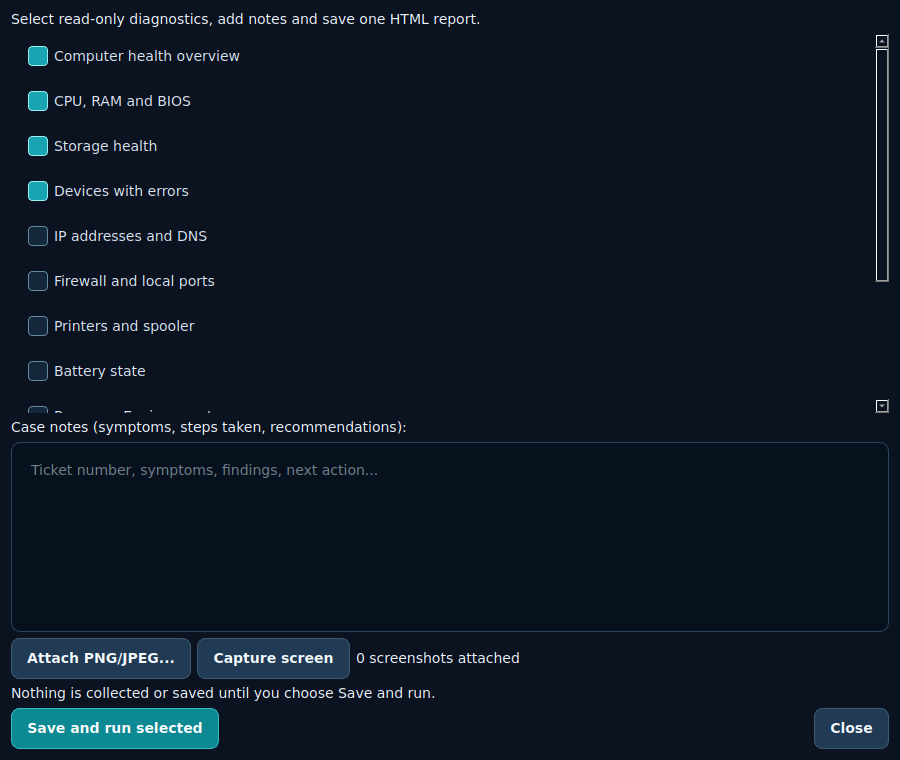
Select any of the 12 read-only checks, add ticket notes, attach or capture screenshots, save one self-contained HTML report. Nothing is collected until you choose Save and run.
| Limit | Value |
|---|---|
| Per-check timeout | 180 seconds |
| Output cap per check | 300,000 characters |
| Screenshots per report | 8 images, 12 MB each |
| Upload | None. The report is saved locally only. |
Covers wired and wireless connectivity, VPN clients, and the reset commands that fix a surprising share of "nothing loads" tickets.
| Task | What it does |
|---|---|
| IP addresses and DNS | Full IP configuration, assigned DNS servers, and the IPv4 routing table. |
| Firewall and local ports | Firewall profile state and every listening TCP socket with its owning process ID. |
| Flush DNS cache | Clears cached local DNS entries. Recheck name resolution afterward. |
| Reset Winsock | Resets the Winsock catalog. Requires a restart; can disrupt a remote session. |
| Reset TCP/IP | Resets the Windows TCP/IP stack. Requires a restart; do not run during an unattended remote session. |
| Task | What it does |
|---|---|
| Current wireless link | SSID, signal strength, radio type, channel, and authentication in use right now. |
| Wireless drivers | The wireless adapter and which Wi-Fi standards the driver reports supporting. |
| Nearby networks | Visible networks and their BSSIDs. |
| Saved profile names | Lists saved SSIDs without revealing any stored password. |
| Wireless connection events | Recent WLAN AutoConfig warnings and errors from the event log. |
| Task | What it does |
|---|---|
| Windows VPN profiles | Configured user and machine VPN connections, server address, and current status. |
| VPN adapters and routes | Virtual VPN network adapters, their addresses, DNS, and the resulting route table. |
| Cisco Secure Client status | Detects Cisco AnyConnect services, running processes, and virtual adapters. |
| RasClient failures | Recent built-in Windows VPN connection failure events. |
Read the applied policy state before forcing a reprocess, forcing one blind is how "it was working yesterday" tickets multiply.
| Task | What it does |
|---|---|
| GPResult summary | Applied user and computer policies for the current session (gpresult /r). |
| Policy event log | Recent Group Policy processing warnings and errors. |
| GPUpdate | Processes changed policies only. A refresh can affect active settings and applications. |
| GPUpdate /force | Reprocesses every user and computer policy, not just changed ones. Review GPResult first. |
| Computer policy /force | Forces computer-side policy reprocessing with administrator rights, for when only the computer side is affected. |
| Symptom | Start here |
|---|---|
| Domain resource unreachable, but network is fine | Policy not applying (Overview): confirms domain join, DC discovery, secure channel, and SYSVOL in one pass |
| A policy setting isn't taking effect | GPResult summary first, to confirm whether the policy is even being applied, before forcing anything |
| Policy was changed centrally and needs to land now | GPUpdate /force, after reviewing GPResult |
Read-only inventory and health for the physical machine, plus the two services (audio, print spooler) that get restarted more than almost anything else on a desk visit.
| Task | What it does |
|---|---|
| CPU, RAM and BIOS | Processor core/thread count, installed memory modules and speed, BIOS manufacturer and release date. |
| Storage health | Physical disk health and operational status, plus reliability counters (temperature, wear, power-on hours, read/write errors) when exposed. |
| GPU and monitors | Video controller, driver version, current resolution and refresh rate, connected displays, and nvidia-smi output when available. |
| Battery state | Battery charge and device details, on portable hardware. |
| TPM and Secure Boot | TPM presence and readiness, and whether Secure Boot is confirmed active. |
| Devices with errors | Every Plug and Play device currently reporting a non-OK status. |
| Task | What it does |
|---|---|
| Audio devices | Sound hardware, audio endpoints, and the core audio service states. |
| Camera devices | Status of Camera and Image class devices. |
| Restart audio service | Force-restarts Audiosrv. This interrupts any active audio session, confirm with the user before running it during a call. |
| Task | What it does |
|---|---|
| Printers and spooler | Installed printers, ports, drivers, and current spooler service state. |
| Print errors | Recent Print Service administrative log warnings and errors. |
| Restart Print Spooler | Restarts the spooler without deleting queued jobs, though active jobs in flight may still be interrupted. |
The classic file-system and component-store repair chain, in the order that actually makes sense: read-only checks first, repair commands only once you know what you're fixing.
| Task | What it does |
|---|---|
| CHKDSK C: online scan | Scans the C: volume without scheduling an offline repair on next boot. |
| SFC verify only | Checks protected system files without repairing anything. |
| DISM scan health | Scans the component store for corruption. |
| DISM analyze component store | Analyzes the store and recommends whether cleanup would help. |
| Recovery Environment | Recovery Environment state and any existing System Restore points. |
| Defender and firewall | Microsoft Defender protection state, signature age, and firewall profile status. |
| BitLocker status | Encryption status per volume, without exposing recovery keys. |
| DISM restore health | Repairs the Windows component store. Can take a long time. |
| SFC repair | Repairs protected system files. Check the results and reboot if the tool requests it. |
chkdsk C: /scan
sfc /verifyonly
DISM.exe /Online /Cleanup-Image /RestoreHealth
sfc /scannow
Run DISM before SFC when SFC alone can't repair a file, DISM repairs the source SFC pulls from.
Everything needed for a new-machine delivery or a post-install check, plus the everyday Settings shortcuts a technician opens most.
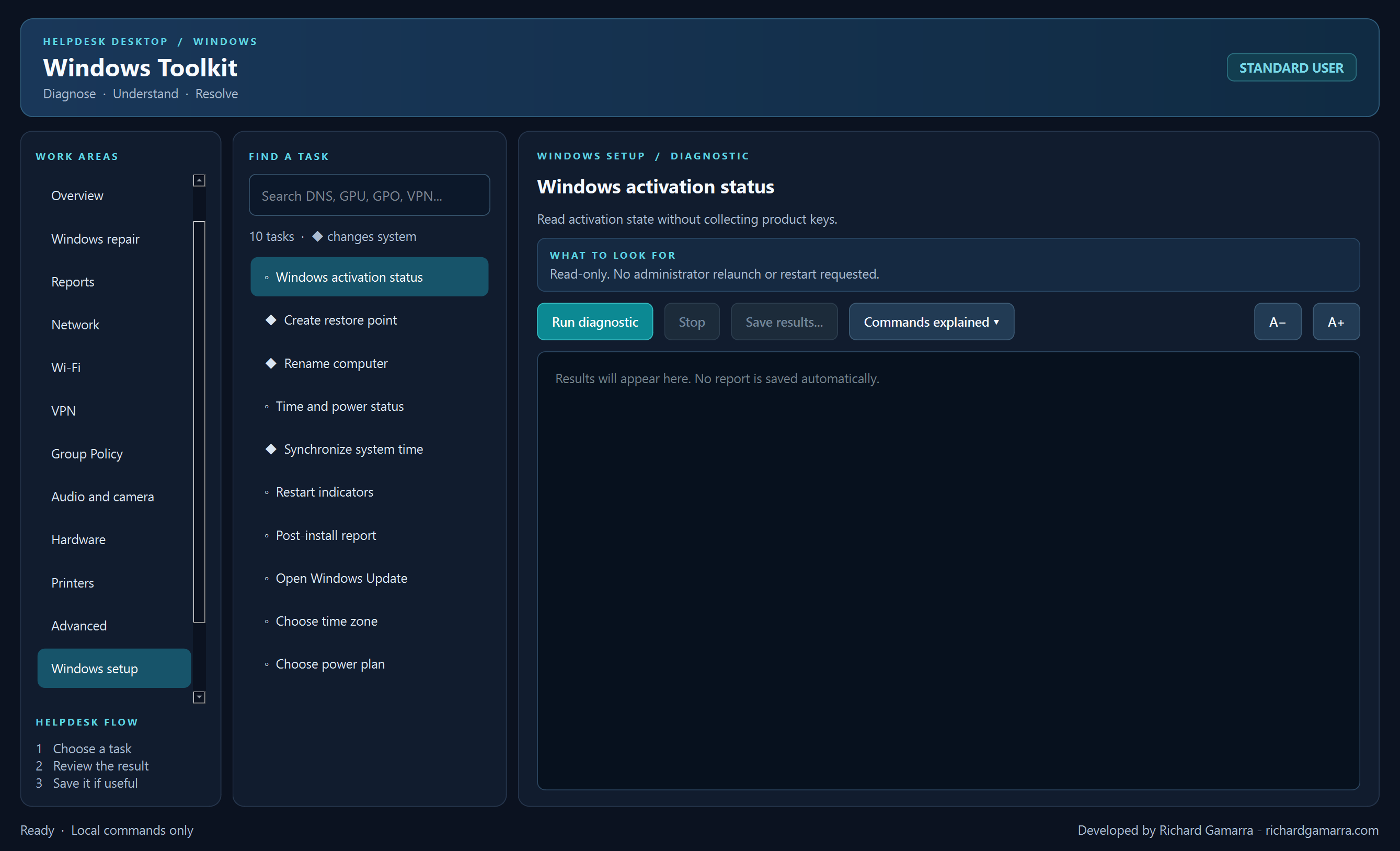
10 tasks in this area, including three that open a real Windows Settings page directly instead of duplicating it.
| Task | What it does |
|---|---|
| Windows activation status | Reads activation state without collecting or displaying the product key. |
| Create restore point | Enter a description, create a System Restore checkpoint. System Protection must already be enabled; Windows rejects a second checkpoint within 24 hours. |
| Rename computer | Enter a new computer name. Domain-joined machines can require domain authorization. A manual restart is required afterward, the tool does not restart automatically. |
| Time and power status | Time zone, Windows Time source, and the active power plan. |
| Synchronize system time | Asks Windows Time to resync against its configured source, preserving the domain/NTP source already set. |
| Restart indicators | Reads the common servicing/update pending-restart registry indicators. Not an exhaustive restart assessment, just the common flags. |
| Post-install report | The delivery checklist plus this session's attempted actions, reviewed before saving as HTML. |
| Open Windows Update | Opens the real Windows Update settings page. |
| Choose time zone | Opens the date and time settings page. |
| Choose power plan | Opens the classic Power Options control panel applet. |
| Task | What it does |
|---|---|
| File extensions, hidden files and This PC | Opens Folder Options: View for extensions/hidden files, General for This PC default. Keep protected OS files hidden. |
| Dark mode and transparency | Opens the Colors settings page. |
| Visual effects and performance | Opens the classic System Properties Performance dialog. Note the current preset before changing it. |
| Windows tips and suggestions | Opens the notifications settings page; availability varies by Windows version. |
| Diagnostic data privacy | Opens the diagnostic data feedback settings page. Organization policy can limit what's actually available to change. |
Every settings-link task in this tab only opens a real Windows page, it changes nothing by itself. Windows handles the confirmation, privilege check, and any restart notice once you make a change there. Settings changed outside the Toolkit are not recorded by it, log them manually in the ticket.
The one area of the app that talks to the network, and only when you explicitly ask it to search, preview, or install something through WinGet.
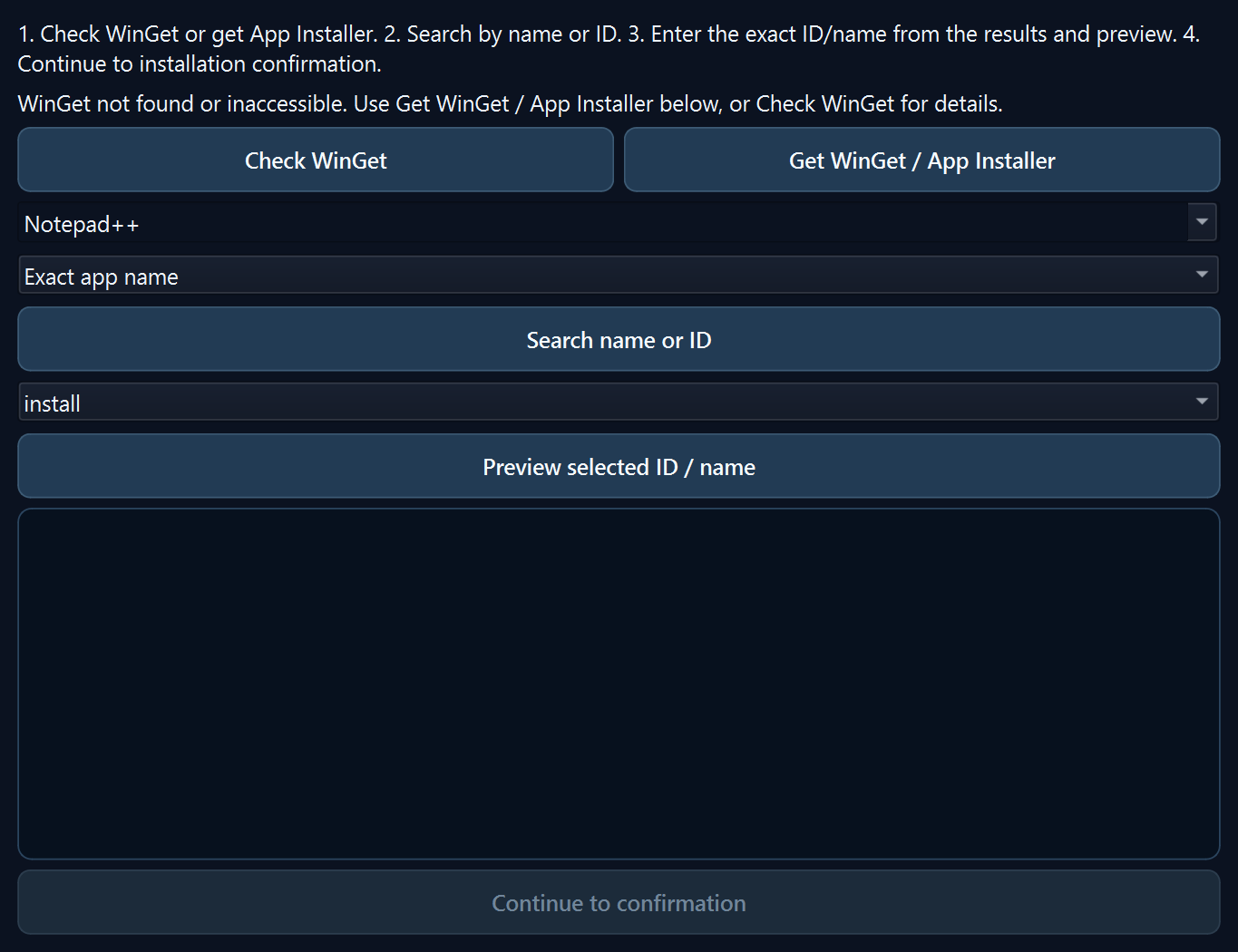
Nothing installs without an exact-ID preview and a separate confirmation step.
| Task | What it does |
|---|---|
| Installed Store apps | Lists current-user Store/MSIX packages. Read-only, current user only. |
| Installed desktop apps | Reads installed-program registry entries directly, deliberately avoiding Win32_Product, which can trigger unwanted MSI repairs just by being queried. |
| Available application updates | Asks WinGet what updates are available. Requires internet and WinGet; nothing is installed by this task. |
| Install or update an application | Search by name or ID, copy the exact match into the field, preview it, then confirm. Supports IDs containing a +, such as Notepad++.Notepad++. |
| Uninstall selected applications | Opens the real Windows Apps & features page and its own confirmation flow. Not a bulk-removal tool. |
If WinGet is unavailable, the tool only opens the Store page for Microsoft App Installer, it does not silently install prerequisites.
An exact name that matches more than one package must be resolved with the exact package ID instead.
Preview selected ID/name, review it, then Continue to confirmation. Source/package agreements are not silently accepted, any agreement error needs review before retrying.
What's actually happening under the hood, and the two prototype tools that go beyond a single diagnostic.
Expand Commands explained on any task to see two tabs: What each command does, a human-readable, line-by-line explanation of the real script, and Exact CMD launch, the actual command line the app sends, which you can copy directly. The app encodes that command as a UTF-16LE Base64 PowerShell argument for reliable transport, the readable script tab exists specifically so you never have to decode that yourself to know what a task does before running it.
The whole application relaunches elevated, a single task doesn't run elevated in isolation. The title bar badge changes from Standard User to Administrator once elevated.
Launches Explorer's existing All Tasks Control Panel namespace (shell:::{ED7BA470-8E54-465E-825C-99712043E01C}). It's a shortcut to settings Windows already ships, opening it does not grant administrator rights by itself.
A technician checks any of 12 read-only diagnostics, adds case notes, attaches or captures screenshots, and saves one portable, self-contained HTML file. This is an Advanced prototype, validate results on a real machine before relying on it in production.
| Not included | Why |
|---|---|
| Offline repair on an unbootable OS | Mixing online and offline registry/volume assumptions in one tool is a good way to make things worse; that's a separate WinPE-based workflow. |
| Bulk app removal / update-all | Personalization and uninstallation intentionally open Windows' own UI instead of automating removal. |
| Browser credential, product key, or Wi-Fi password extraction | Excluded on purpose. Saved Wi-Fi profile names are listed; the stored password never is. |
| Automatic reboot flags | The Toolkit never requests or forces a restart on its own; any restart notice comes from the underlying tool (DISM, an installer) and is your call. |
Installing, running, and removing RG Windows Toolkit, plus the official Microsoft references behind the WinGet and repair workflows.
Choose a destination folder on the Select Destination Location page. The installer copies the program EXE and its complete _internal folder together. A Start menu shortcut is created; a desktop shortcut is optional. Installation is for your current Windows account only, no administrator rights required to install.
Or open your chosen install folder and double-click "RG Windows Toolkit.exe" directly. The application window itself is titled "Windows Toolkit". No separate Python installation is required, everything needed is bundled.
Windows Settings > Apps > Installed apps > RG Windows Toolkit > Uninstall. A normal Windows uninstaller is registered by the installer, there's no separate manual cleanup step.
Installation, updating, and general usage for the WinGet client the Software tab drives.
Open ↗How WinGet matches names and IDs, useful background for resolving an exact package match.
Open ↗Microsoft's own reference for the built-in configuration tools that several Personalization and Windows setup tasks link directly to.
Open ↗