1. What this procedure does (read this first)
When the power goes out, every device runs on the UPS battery for only a few minutes. If those minutes run out before the devices shut down properly, you risk data corruption on your NAS and servers. This procedure makes the shutdown automatic and graceful: a few minutes into an outage, the NAS units and the Windows host power themselves down cleanly, then everything powers back up on its own when the electricity returns.
The trick is that one UPS (plugged into one Windows computer by USB) needs to protect several devices on the network. We do this with a free tool called NUT (Network UPS Tools). The Windows host reads the UPS and acts as a small "UPS server"; the Synology NAS units (and any other computers) connect to it over the network as "clients" and obey its shutdown signal.
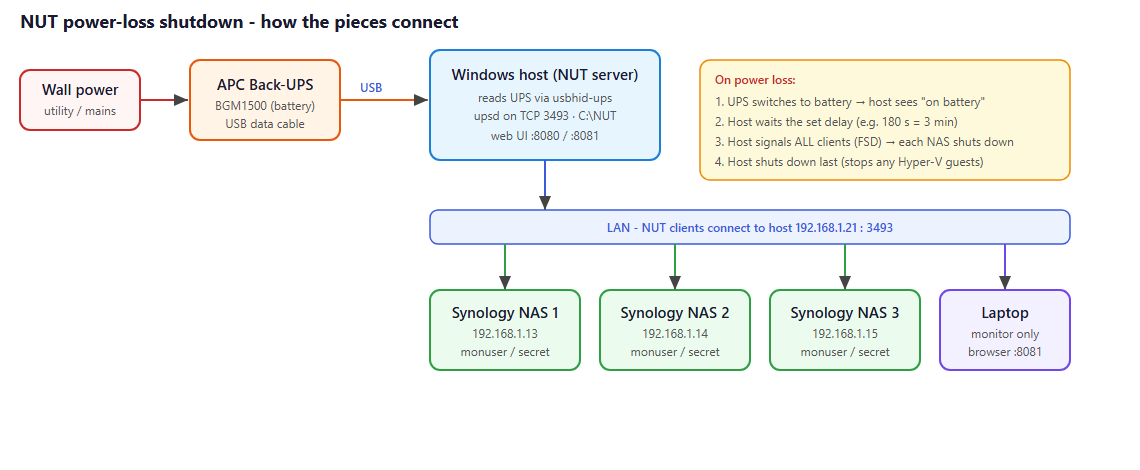
The flow on a power cut: UPS goes to battery → the host notices → it waits a set delay (we use 3 minutes) → it tells all clients to shut down → it shuts itself down last. If power comes back before the 3 minutes are up, nothing shuts down.
You do not need to be an expert. Follow the steps in order. Anything you must do by hand (there is only one - a driver swap) is called out clearly with a picture.
2. Before you start (prerequisites)
- [ ] A Windows host (Windows Server or Windows 10/11), where you have an Administrator login.
- [ ] The UPS connected to that host by its USB cable (use the cable that came with the UPS).
- [ ] The other devices (Synology NAS units, etc.) are on the same local network.
- [ ] You can open a PowerShell window as Administrator (right-click Start → *Windows PowerShell (Admin)*).
- [ ] About 30 minutes, and a willingness to do one off-hours power-pull test at the end.
Information to collect (write it down):
| What | Example | Where to find it |
|---|---|---|
| Host LAN IP address | 192.168.1.21 | ipconfig in PowerShell |
| UPS brand / model | APC Back-UPS BGM1500 | Sticker on the UPS |
| NAS IP addresses | 192.168.1.13/14/15 | Synology DSM / your router |
| Desired shutdown delay | 180 seconds (3 min) | Your choice |
3. The procedure at a glance
1. Confirm Windows sees the UPS. 2. Download NUT for Windows. 3. Run the installer script. 4. If needed: swap the UPS USB driver with Zadig (the only manual step). 5. Confirm the host can read the UPS. 6. Point each Synology NAS at the host. 7. Open the dashboards. 8. Verify everything is connected. 9. Do the real power-pull test.
4. Step-by-step
Step 1 - Confirm Windows sees the UPS
Open PowerShell as Administrator and run:
Get-PnpDevice | Where-Object { $_.FriendlyName -match 'UPS|APC|Back-UPS|CyberPower|Eaton|Tripp' } | Format-Table Status, Class, FriendlyNameExpected result: at least one line showing your UPS (for example American Power Conversion USB UPS). If it fails: the USB cable isn't seated or isn't a data cable. Reseat it, try another USB port, and use the cable that shipped with the UPS.
Step 2 - Download NUT for Windows
1. On the host, open a browser and go to https://networkupstools.org/download.html. 2. Download the latest Windows build (a .7z or .zip, named like NUT-for-Windows-x86_64-…). 3. Extract it to a folder you can find, e.g. C:\Users\Administrator\Downloads\NUT-for-Windows…. Inside you should see a mingw64 folder.
Expected result: an extracted folder containing mingw64\bin\nut.exe. If it fails: install 7-Zip (https://7-zip.org) to extract .7z archives.
Step 3 - Run the installer
Copy the skill folder (nut-windows-ups-shutdown) onto the host (or unzip the .skill file). From an elevated PowerShell, run the installer, pointing -NutSource at the folder you extracted in Step 2 and choosing your shutdown delay:
cd <path-to-skill>\nut-windows-ups-shutdown
powershell -ExecutionPolicy Bypass -File scripts\Install-NutShutdown.ps1 -NutSource "C:\Users\Administrator\Downloads\NUT-for-Windows-x86_64-SNAPSHOT-2.8.5.4499-master" -ShutdownDelaySec 180
The installer copies NUT to C:\NUT, writes all the configuration, registers the Windows service, opens the firewall, sets up the 3-minute shutdown, and starts the two web dashboards. It prints a summary at the end.
Expected result: green [OK] lines and a DONE summary. If it says ups.status is EMPTY, go to Step 4. If it shows a real status like OL, skip to Step 5. If it fails: make sure PowerShell is elevated and -NutSource points at the right folder.
Step 4 - (Only if status was empty) Swap the USB driver with Zadig
Some UPS models - notably the APC Back-UPS BGM-series - hide their data behind the default Windows USB driver, so NUT sees the device but no readings. The fix is a one-time manual step: replace the driver with WinUSB using a tiny free tool called Zadig.
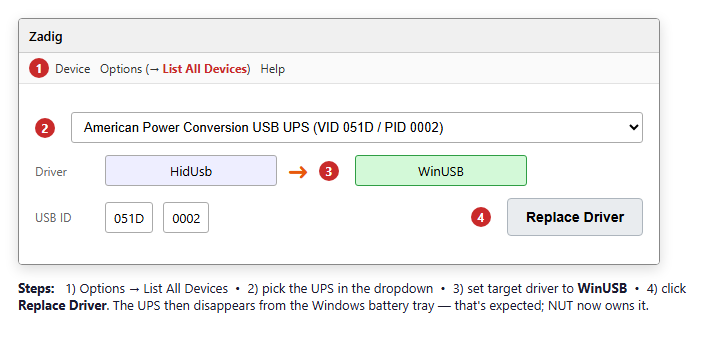
1. Download Zadig (single .exe, no install) from https://zadig.akeo.ie. 2. Run it as Administrator. 3. Menu Options → List All Devices. 4. In the dropdown, select your UPS (e.g. *American Power Conversion USB UPS*, USB ID 051D / 0002). 5. Set the target driver to WinUSB, then click Replace Driver. 6. When it says success, close Zadig.
Expected result: the UPS disappears from the Windows battery tray (that's normal - NUT owns it now). If it fails: double-check you selected the UPS and not another device. To undo: Device Manager → the UPS → *Uninstall device* → *Scan for hardware changes*.
After Zadig, re-run the installer command from Step 3.
Step 5 - Confirm the host can read the UPS
C:\NUT\bin\upsc.exe ups@127.0.0.1Expected result: a list of live values - ups.status: OL, battery.charge: 100, battery.runtime, input.voltage, ups.load, etc. If it fails (empty / connection error): the driver still isn't bound - repeat Step 4. Note: always use 127.0.0.1, never localhost (that uses IPv6, which the server doesn't listen on).
The status may readOL DISCHRG. TheOLmeans on line / mains power - it is *not* on battery. The extraDISCHRGis a harmless quirk of some APC units and does not trigger a shutdown.
Step 6 - Point each Synology NAS at the host
Do this on every NAS (no software to install - it's built into DSM):
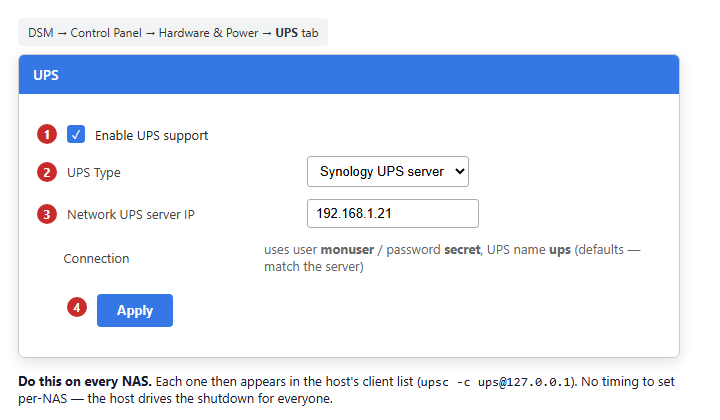
1. Control Panel → Hardware & Power → UPS. 2. Tick Enable UPS support. 3. UPS Type → Synology UPS server. 4. Network UPS server IP = your host's IP (e.g. 192.168.1.21). 5. Click Apply.
Synology connects automatically as user `monuser` / password `secret`, expecting the UPS named `ups` - which is exactly what the installer set up, so it just works.
Expected result: DSM shows the UPS model and battery once connected. If it fails: confirm the host firewall allows the NAS (the installer opened TCP 3493 to your subnet) and that you entered the host IP correctly.
Step 7 - Open the dashboards
Two web pages were set up automatically and start on every boot:
Control panel (on the host only) - http://localhost:8080 - the full operations dashboard:
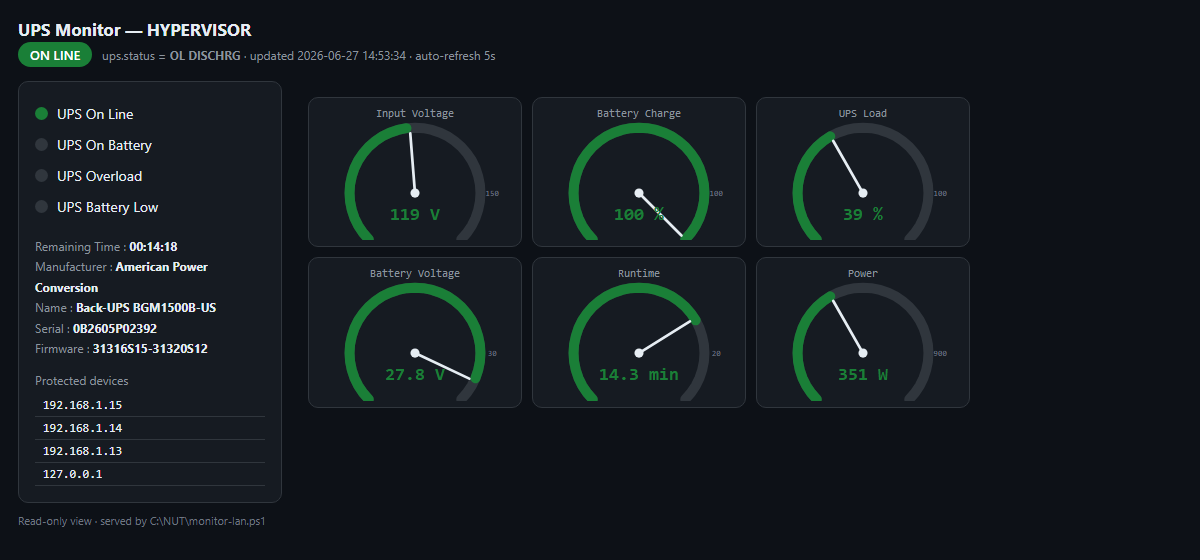
- Live gauges - input voltage, battery charge, UPS load, battery voltage, runtime, and power (W).
- Battery health - charge/voltage, install date, age, and a suggested replace-by date.
- Power & energy - a live wattage trend with estimated monthly kWh and cost (set your rate).
- Service & monitoring health - NUT service uptime, the event logger, and email-alert status.
- Connected clients - each NAS shown by IP and resolved hostname.
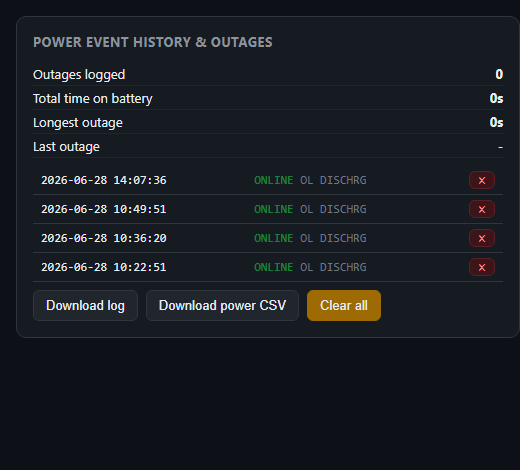
- Power event history & outages - every power event with timestamps plus outage statistics
(count, total time on battery, longest, last). Each entry has a delete (✕) button, with a *Clear all*.
- Controls - change the shutdown delay; adjust UPS settings (transfer voltages, low-battery
thresholds, input sensitivity); run quick/deep self-tests; mute the beeper; download the event log, power CSV, or a status report; and a collapsible *all UPS variables* view.
- Emergency actions - *Shut down everything now* and *Abort*, plus type-to-confirm *Reboot the load*
/ *Cut UPS output*. Every red button asks for confirmation first.
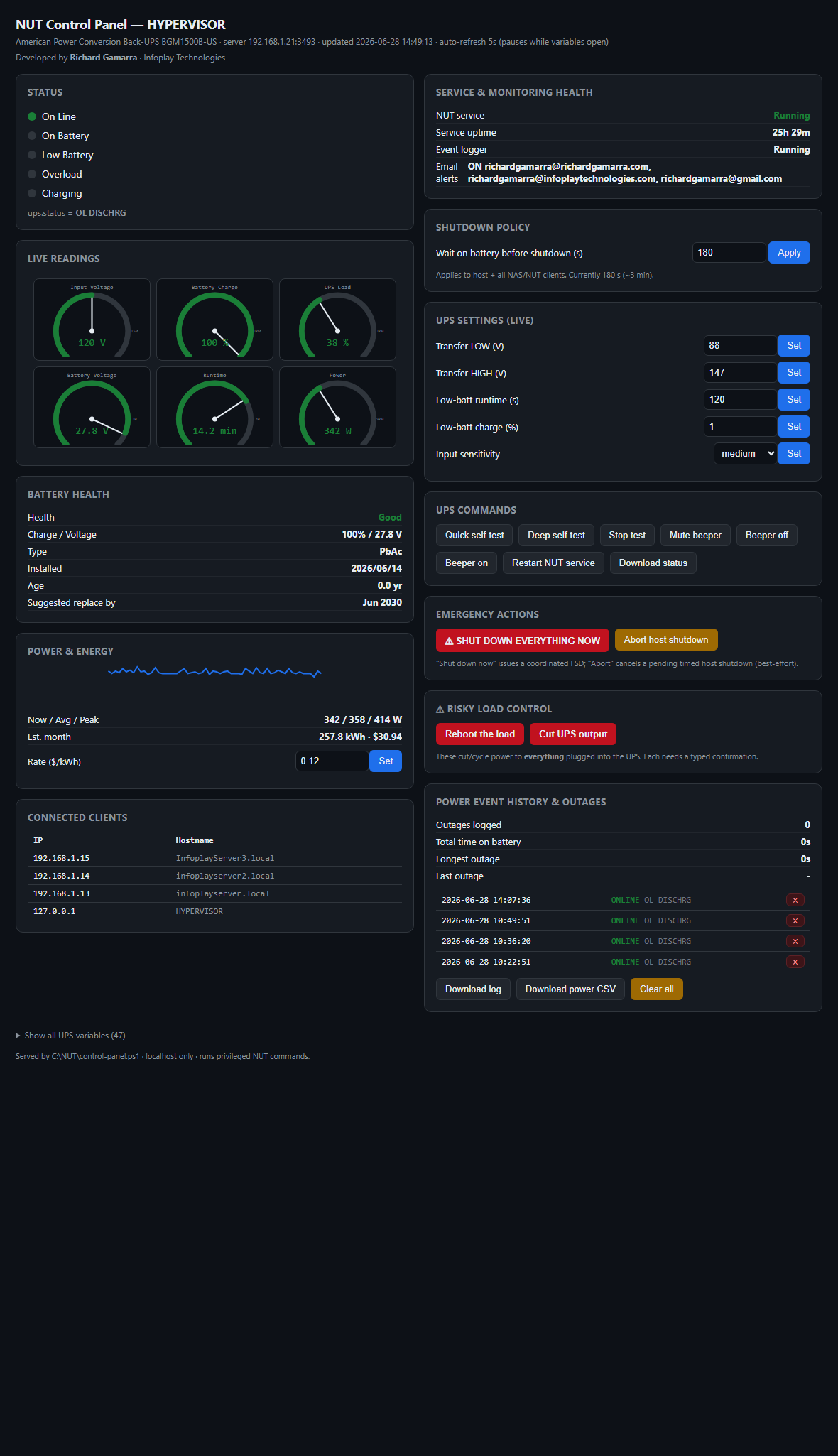
The Power Event History & Outages panel logs every event with timestamps and outage statistics. Each row has a delete (✕) button, and *Clear all* wipes the history (both with a confirmation):
Read-only monitor (from any laptop on the network) - http://<host-ip>:8081 - the same gauges, view-only, safe to open anywhere. Bookmark it on your laptops.
Email alerts (optional). A background NUT Event Logger service records every power event to C:\NUT\events.log (and samples wattage to power-log.csv for the trend) and can email you on each outage, low-battery, power-restored, and lost-communication event. Edit C:\NUT\email.config, set Enabled=true, and use either:
- Internal Exchange / mail server (recommended): create an anonymous relay receive connector
scoped to this host's IP, then set Port=25 with no username/password - no credentials are stored.
- Authenticated SMTP (Gmail / Microsoft 365): set
Port=587,UseSsl=true, and a username plus an
app password (Gmail requires a 16-character App Password, not the account password).
Restart the NUT Event Logger task to apply.
Step 8 - Verify everything is connected
C:\NUT\bin\upsc.exe -c ups@127.0.0.1Expected result: the host (127.0.0.1) and every NAS IP appear in the list. That confirms each NAS is logged in and will receive the shutdown signal.
Step 9 - The real test (do this off-hours)
The only way to truly trust it is to simulate an outage. This will power down the host and all NAS units, so schedule it outside working hours.
1. Cancel-path test first: pull the UPS's wall plug, watch the monitor flip to *On Battery* and the countdown begin, then plug back in before the delay - nothing should shut down. 2. Full test: pull the plug and let it run past the delay - the NAS units shut down, then the host. 3. Restore power and confirm everything boots back up.
Expected result: graceful shutdown of all devices at the delay, clean reboot afterward.
Quick reference (everyday use)
| To... | Do this |
|---|---|
| Check status from your desk/laptop | Open http://<host-ip>:8081 (read-only monitor) |
| Manage or change settings | Open http://localhost:8080 on the host (control panel) |
| See past outages | Control panel → *Power Event History & Outages* |
| Change the shutdown delay | Control panel → *Shutdown policy* → set seconds → Apply |
| Run a battery self-test | Control panel → *UPS commands* → Quick / Deep self-test |
| Silence the alarm | Control panel → *Mute beeper* / *Beeper off* |
| Get emailed on outages | Configure C:\NUT\email.config (see Step 7) |
| Check live status by command | C:\NUT\bin\upsc.exe ups@127.0.0.1 |
| See which clients are connected | C:\NUT\bin\upsc.exe -c ups@127.0.0.1 |
| Emergency: power everything down | Control panel → *Shut down everything now* (confirm) |
Four background services start automatically at boot: Network UPS Tools (the UPS server), NUT Control Panel and NUT Web Monitor (the dashboards), and NUT Event Logger (power-event history + email alerts).
5. Verification checklist
- [ ]
upsc ups@127.0.0.1showsups.status: OLand live battery/load values. - [ ]
upsc -c ups@127.0.0.1lists the host plus every NAS IP. - [ ]
http://localhost:8080andhttp://<host-ip>:8081both load and show moving gauges. - [ ] The
Network UPS Toolsservice is Running / Automatic (Get-Service 'Network UPS Tools'). - [ ] The cancel-path test did nothing; the full test shut everything down cleanly.
6. Troubleshooting
| Symptom | Likely cause | Fix |
|---|---|---|
ups.status is empty, no battery values | UPS still on the Windows HidUsb driver | Do the Zadig WinUSB swap (Step 4), then re-run the installer |
upsc ups@localhost times out | localhost resolves to IPv6 | Use ups@127.0.0.1 everywhere |
Status shows OL DISCHRG | Cosmetic quirk on some APC units | Ignore - OL means on mains; no shutdown is triggered |
A NAS doesn't appear in upsc -c | Wrong host IP, firewall, or non-default user | Re-check Synology UPS settings; confirm TCP 3493 open to the subnet |
| Dashboard not reachable from a laptop | Monitor firewall rule or wrong URL | Use http://<host-ip>:8081; confirm the NUT web monitor (8081) firewall rule exists |
| Frequency / Output Voltage gauges read N/A | Back-UPS doesn't report those | Normal - those two gauges are replaced by Runtime and Power |
7. Rollback / uninstall
C:\NUT\bin\nut.exe stop
sc.exe delete "Network UPS Tools"
Unregister-ScheduledTask -TaskName 'NUT Control Panel' -Confirm:$false
Unregister-ScheduledTask -TaskName 'NUT Web Monitor' -Confirm:$false
Unregister-ScheduledTask -TaskName 'NUT Event Logger' -Confirm:$false
Get-NetFirewallRule -DisplayName 'NUT*' | Remove-NetFirewallRule
Remove-Item C:\NUT -Recurse -Force
To restore the original UPS driver (after a Zadig swap): Device Manager → the UPS device → Uninstall device → Scan for hardware changes.
If you set up email through an Exchange relay connector, remove it on the mail server: Remove-ReceiveConnector "NUT UPS Alerts Relay".
8. Mini-glossary (for first-timers)
- UPS - Uninterruptible Power Supply; the battery box your gear plugs into.
- NUT - Network UPS Tools; the free software that shares one UPS with many devices.
- Server / client - the host that reads the UPS is the *server*; devices that obey it are *clients*.
- FSD - "Forced Shut Down"; the signal the host sends to make everyone power off together.
- WinUSB / Zadig - a generic USB driver, and the tool that installs it, so NUT can read the UPS.
- `upsc` - the command that prints live UPS readings.